Hello,
Today i'm gonna show you some dummy tricks that can be your first step to the world of programming.
Yes, Programming

You must have heard something about HTML.
HTML is the language used to create webpages and it is shortened from HyperText Markup Language.

So, learn how you can print your own name and bio simply just by putting these code :

Open up any text editor, Notepad would be the way in windows.

Then type these lines of codes :

<!doctype html>
<html>
<head>
<title> My first HTML Page</title>
</head>
<body>
<h1>Hi, I love to create websites.</h1>
</body>
</html>


Like:


Save the file as index.html


And it will give you this on opening up in your browser :


Hello,

We create websites of all kinds beautifully.

We create:

Blogs

Portfolios

One-Page Website

e-commerce site

.........and all types of websites.

Links to our recent works.:

Lapeasy Inc.

Webming,


Contact Us:

Rishabh2362@gmail.com
drop@lapeasy.com

Call us at +91-9415322362    or +91-7388635709

Anytime..!

Virtualbox
Osware
Ipadian
Xcode
Android studio
Hello Friends!.
Today I'm going to tell you about one magazine that my personally owned blog "Lapeasy Inc." Used last month for getting news of new launched technologies & gadgets and writing articles related to them.That magazine is:
                                                                                   DIGIT
Digit is a magazine formed in India for giving computer reviews,tips and tricks,tech news and many other things all related to computers,programming and technology. When I was a newbie into technology I was very confused that how could I get knowledge related to it but I had taken a resolution that i'll be some in computers ;). I'd internet, my friends said that if you have internet then you can do anything but i was a book worm, I can't find it on net. So I choosed digit for getting tech to me. Firstly I bought one set of digit magazine there was one Fastrack book where they take any one topic every month like programming and tell about it on the whole book.there was one game magazine, you can understand about any game magazine so I don't have to tell about it so much.
2 CDs were there, one was all related to the Fastrack book and the main magazine and the other was all related to the game magazine. When I started reading the main magazine, I felt some good. Every month they give the best about tech,computers and tech-news.
Digit is a good magazine for getting tech-news. After reading their that magazine I felt good and chosed digit for my tech news.
You can also subscribe for their monthly magazine at your doorstep.just go to www.digit.com and click on subscribe in the footer.
Thanks,
Lapeasy & Tech-Gadgets
We'll be back with some fresh and relevant content. :-)
Lapeasy Inc. launched it's first website. http://www.lapeasy.com

Prototyping is at the heart of the Arduino Way: we make things and build
objects that interact with other objects, people, and networks. We strive
to find a simpler and faster way to prototype in the cheapest possible way.

We believe that it is essential to play with technology, exploring different
possibilities directly on hardware and software—sometimes without a
very defined goal.
Reusing existing technology is one of the best ways of tinkering. Getting
cheap toys or old discarded equipment and hacking them to make them
do something new is one of the best ways to get to great results.

Open Arduino IDE. Select File > New and you’ll be
asked to choose a sketch folder name: this is where your Arduino sketch
will be stored. Name it Blinking_LED and click OK. Then, type the following
text (Example 01) into the Arduino sketch editor (the main window of
the Arduino IDE). You can also download it from www.makezine.com/
getstartedarduino. It should appear as shown in Figure 4-3.

// Example 01 : Blinking LED const int LED = 13; // LED connected to // digital pin 13 void setup() { pinMode(LED, OUTPUT); // sets the digital // pin as output } void loop() { digitalWrite(LED, HIGH); // turns the LED on delay(1000); // waits for a second digitalWrite(LED, LOW); // turns the LED off delay(1000); // waits for a second

If you're interested in web designing and wanted to learn a right way then today I am going to tell you some great books from which you can do it..

1. Learning web design:a beginners guide to HTML and CSS.
2.HTML and CSS
3.Designing with web standards
4.Web Programming:a book by Chris bates
 

If you're a beginner to Web Development and wanted to make a website that could get good responses and high traffic then you have to make a layout and that today i gonna tell you , So, lets we go onn...

Firstly design a layout that how your website should look and try to get some views from this given layout :


Header= In header write your blog's name and beside it make a menu button which when you click it will overlay the screen which describes your website more dynamic and responsive.its better than having separate buttons for each page.

Beside articles section,you can add your blog's tweeter page widget simply by getting code from the applications section, it will make your visitors alert about your current headlines..and...posts. Under it you can make one headlines section where you can write about your blog's hidden features and what you're going to do next can also be written on that section.Under it in center adding 4 social buttons will look gorgeous i.e. facebook,twitter,google+,pinterest..

Footer= This is also a good and time-taking part of a website. Make your footer big and rectangular in shape so that you can write about your blog and links to other websites very easily. Adding frames to it would be more dynamic and responsive you can do it with css..

For more information, send a mail to:
Rishabh2362@gmail.com

We've launched one more tech-blog like this where you can find information about computers and androids and we're working to make a blog where people could easily find information about Web Development.We've named it X2 means this is second version of LapEasy where one could find information about windows,mac,android,gadgets launched,and a Login feature where one could make account of its own and enjoy our premium services for first 3 months free....!!!!

For more information,click on:

Rishabh2362@gmail.com


First version:

LapEasy


                                                               X-------X
If you want to create a Blog then you've came to a right place.Firstly let me know that whether you're a web designer or a beginner.if you're a web designer then you can make your website by coding yourself but there's some special for beginners they can make their site or blog very easily.Just follow my steps:

1-If you want to do blogging then go to Google Blogger it'd help you because it will provide you the space and only you have to spent money on buying the domain.so go to Blogger then sign in with your google account or if you don't have one then sign up for that.Then you'll land on your blogger dashboard from where you'll manage your blog remember,never stop blogging if once started because it could worth millions to you one day. I'll teach you how to make your blog look good and how to manage your blog in our next article.Once you've signed up to blogger then name your blog which it will ask you i.e. yourblog.blogspot.com. I know that you'll not like that .blogspot that's why before doing all these firstly go to a good domain provider website, i recommend you GoDaddy because it provides good and valuable domains in low cost. then search for your domain's avaibility and buy it.Then come to your blog's dashboard and go to Template tab and select a good template of your choice you can also customize it by clicking on Customize link.Go to settings then Basic tab write the title of your blog and write description of your blog so good that people can attract with your blog.You can change the layout of your blog in Layout tab.Once your blog is setup then is the time to transfer your domain purchased at godaddy to your blog. To do so,go to settings,and basic tab,under Publishing there would be your blog's address,you don't have to touch it,come under it there would be link saying "+Setup third-party URL for your blog." Click on it, write the domain you bought earlier and click on save but there wold be a error you have to deploy servers it could take 10 mins-24 hrs...Be patient..Once it had done you could write articles which wil show in your domain. But wait one minute you could make money from your blog means the time you spent on writing articles for your blog can be monetized. This would be in our next article soon.Till then Keep Blogging never stop it because "Its Easy".....


Hey!friends.Howdy you.Today i am going to tell you one-stop solution to sync all your cloud storage services.So,be ready to move on.
             Storing and backing up all your files on your hard drive will not be the best idea when you have many cloud storage options.their are many players in the market to choose on.You can either choose free services who don't offer much storage space
and services or you can move on with the paid ones who offer more storage space and
services.

       If this article suits you best then choose Odrive to be your storage option.
Hello Friends!I'm Rishabh This article is exclusively written by me Because the
topic today we're going to discuss is so amazing,Emulators,Step into the world of emulators and learn about the amazing things they can do.

           Today I'm Going to tell you something about Emulators,you all know
after reading the above para.You might be thinking that what are emulators all
about.Don't worry I'll tell you.
                In a nutshell,an emulator is hardware or a piece of software,
which is capable of-in the simplest sense of the word-faking being something it
isn't.The emulator tricks the hardware/siftware it's running on into believing
that it's something else to get a simplest task done without raising suspicion
or worse,getting caught.
              In a technical sense,it is software or hardware that recreates an
environment.It does this by including variables such as memory,storage space and
processing needs to a point where it's able to meet all the systemrequirements
needed by a particular software or hardware to run.
     So,finally it's a great thing you've learnt about the emulators.Therefore,
let's learn that why we need this and what we can do with this all.

Why do we need emulators?-Many of you may have heard about emulators,even if you
haven't usedone yourselves.However,most of their use cases are limited to old
Nintendo Games played on them.That,of course is a pretty handy utilisation of
emulators,but a tiny drop in the ocean of an emulator's capabilities.
                In the software industry,for example,emulators are used to not
only run programs that today's operating systems refuse to run,but also design
software for future hardware,so that once those hardware are available,they
already have the needed software - saving lots of time.Developers use this all
the time.All the software development kits sent to them by companies often include
an emulator.This can convey to the developer,say,what an Oculus Rift(or any other
product they're developing software for)feels like and what are the different
constraints to be kept in mind while making applications for it.Furthermore,these
emulators are fast,which,means faster testing than by their original counterparts
and more refinement.If you ever connected your non-HP Printer to your computer,
which detected it as an HP Printer,this was no coincidence.Many printes are design
to emulate Hewlett-Packard laserjet printers because most software is written for HP
Printers.
        So,friends this is the introduction  to the world of emullators.Functions of emulators
and what all you can do with emulators will be given on our next article.


Hello friends,I'm Rishabh,firstly I want to tell you that this article
is all about Programming languages,not any program or site that can
be build by scratch.So,before we go on,the question in the mind of dummies
is that what is a programming language.?the simple answer i tell you is that
every game,program or site you often open is written by a Web programmer
using a software development tool is called an programming language.
            But in deep,there are various types of programming languages
For making websites and programs and it consists of various types of codes
and strings.So,lets we go on...
There are many types of programming languages,But in this article i'll explain
you few of it but if you want to learn about any other programming language
that is not listed in this article,you can contact us.We are always there to
to help you.

The main programming language that is used to design webpages is HTML.
Note-HTML is an acronym for Hypertext Markup Language.
                  HTML is pretty straightforward when you consider the powerful and complex
applications that it can be used to build.The basic principle when using HTML
is that you take some content,usually a mixture of text and images,and then apply
formatting information to it. The Web Browser uses that formatting information to
correctly process the content. The process may take the form of display on the
screen,sending it to a printer or reading the page to a visually impaired
user.That's just like a word processor really,the big difference being that we can
directly edit the formatting information in situ.So,you have understood that
what all you can pass out with HTML.Why not take a look at its commands.
                 
              Tags:
Always remember that the tag is made up of three things,a left angle bracket,
a tagname and a right angle bracket.So,whenever you start the tag {<tagname>},
don't forget to end that with a slash [</tagname>],otherwise your coding will
not be accepted by the user.

<html> tag is written before and after you start writing your program.
<!doctype html> is written in well customized websites,but not in both (start
& end),it's only written when you start writing your coding.
<title> tag is the tag where you write the title of your website,it will not
be displayed within the text area of your browser that most of dummies get through it.
It will be displayed in the tab of your site.
             In between <head> tag,<title> tag is used.
<body> tag is the main tag where the content of your website is typed.
                 So, you have understood the basic elements of HTML.

The programming languages which are so popular in today's life are:

1-Assembly
2-Java
3-Javascript
4-C
5-C#
6-PHP
7-Python
8-R
9-Ruby
10-Rust
11-Swift
12-C++
     
    So,thanks Guys for being so engage in my article.You might be thinking
    that i've explained only one Programming language!.You are right,i've
    explained only one programming language because i'm so busy on my company's
    work.I've started writing this article by thinking that i would cover up
    all these programming languages listed above but suddenly while writing
    i came to know that one key feature coding work is left that will be on our
    website.So,there's no worry about this because i've decided that i will
    explain all these programming languages in my next articles soon...

                
  • Issue: CPU is slow or unstable or always under heavy load. 
  • If you recently mounted a new motherboard or installed an new OS,you may want to check the BIOS for any improper configurations.You can try freeware applications such as:CPU-Z and Cinebench..to check your CPU is working fine by comparing it with results of others over the web.   That would be helpful but what if your CPU is always under stress?In other words,it is hogging too much resources at every instance of time even when you know you aren't doing anything.This could be a work of malware. Try installing the free version of AVG antivirus simply on google search and run a complete scan to hunt down the malware.


  • Critical Issues: Windows is freezing.
  • Freezing is the most common and frustrating issues are computers run into every few months.It happens with a myriad of reasons with a common cause being insufficient processor cooling.Generally its when your CPU Fan gets clogged up with too much dust, or when the thermal paste between the sink and processor had dried up.Cleaning And Replacing the thermal paste should help.
                           Additionally,there could be loose cables,so check carefully all the cables.Check in the Task manager if any process is faulted.Also,Browser with too much extensions or plugins installed consume a lot of resources.Therefore,you should check for the loose cables,dust inside the CPU and too much plugins.

Need any more information about PCs Contact Us.
Google's New Driverless Car Had Launched ..........

It's easy to make your own website for free.....but if you want to make a highly customised website you have to spent some money.......not too much ..but some.....,,  By following this guide step by step you can learn how to make your super cool website. So, People can find you easily on desktop,mobile or tab ....very very easily..


So Lets We Go On..


The only thing you have to do, is to follow my  three simple steps and i'll explain you how to do them. 


  • First thing you have to do is to buy a domain i.e. www.youraddress.com. and there is no other method to get it for free.So, you have to buy it.It's better to buy a .com domain so people can find your site globally.There are so many domain sites like: godaddy,hostgator etc.  
  • Secondly,you have to make a blog on google blogger.you can apply any template as per your choice.Make it so good so people can attract with your site.You can do this by clicking on Template
     option in your Blogger Dashboard.You can also add your own HTML commands by clicking on  Edit HTML option in Template window.
  • Third and the last thing you have to do is to go to Settings window and under Publishing  you'll see a link saying "+ Set up a third-party URL for your blog you have to click on it. Then it will ask for some steps as it'll ask you to write the name of your existing domain you have already bought . It can take 10 min.-24 hrs to apply the domain to your google blog. 


                                                        It's Completed.....


For more information mail to mpverma059@gmail.com.

It's easy to make your own website for free.....but if you want to make a highly customised website you have to spent some money.......not too much ..but some.....,,  By following this guide step by step you can learn how to make your super cool website. So, People can find you easily on desktop,mobile or tab ....very very easily..


So Lets We Go On..


The only thing you have to do, is to follow my  three simple steps and i'll explain you how to do them. 


  • First thing you have to do is to buy a domain i.e. www.youraddress.com. and there is no other method to get it for free.So, you have to buy it.It's better to buy a .com domain so people can find your site globally.There are so many domain sites like: godaddy,hostgator etc.  
  • Secondly,you have to make a blog on google blogger.you can apply any template as per your choice.Make it so good so people can attract with your site.You can do this by clicking on Template
     option in your Blogger Dashboard.You can also add your own HTML commands by clicking on  Edit HTML option in Template window.
  • Third and the last thing you have to do is to go to Settings window and under Publishing  you'll see a link saying "+ Set up a third-party URL for your blog you have to click on it. Then it will ask for some steps as it'll ask you to write the name of your existing domain you have already bought . It can take 10 min.-24 hrs to apply the domain to your google blog. 


                                                        It's Completed.....


For more information mail to mpverma059@gmail.com.
 Hide It!!


Some time we have to secure file or data.
If we want to hide a folder or file
Just try the simple Trick.

Step:1
Choose your file. And go to the rename.

Step:2
Now just add “.” Dot name of folder
Like folder name Rishabh
You change in .Rishabh and click enter.

And then your folder become hide.
If u want to see again
Press ctrl+h
It will become show


Thank You..
Blogging isn't dead but it had become less frivolous...


Using This Guide you can learn how to make your own blog easily,,

You can make your own Blog in two platforms in Blogger which is provided by Google or in Wordpress. But please be informed that Blogger is made for beginners and who can't afford too much money.....and Wordpress is meant for those who have their past experience in blogging and who can afford money.......So Before we Go on Let's know about these blogging services...:

Blogger   :

Design your blog

Design your blog

Create a beautiful blog that fits your style. Choose from easy-to-use templates with flexible layouts and hundreds of background images, or edit your blog’s CSS and HTML to create something entirely unique. If you’re using your blog for a brand or business, you can create a custom domain that’s easy for people to find and follow.

WordPress:

Here are some of the features that we think that you'll love.

  • Simplicity Simplicity makes it possible for you to get online and get publishing, quickly. Nothing should get in the way of you getting your website up and your content out there. WordPress is built to make that happen.
  • Flexibility With WordPress, you can create any type of website you want: a personal blog or website, a photoblog, a business website, a professional portfolio, a government website, a magazine or news website, an online community, even a network of websites. You can make your website beautiful with themes, and extend it with plugins. You can even build your very own application.
  • Publish with Ease If you've ever created a document, you're already a whizz at creating content with WordPress. You can create Posts and Pages, format them easily, insert media, and with the click of a button your content is live and on the web.
  • Publishing Tools WordPress makes it easy for you to manage your content. Create drafts, schedule publication, and look at your post revisions. Make your content public or private, and secure posts and pages with a password.
  • User Management Not everyone requires the same access to your website. Administrators manage the site, editors work with content, authors and contributors write that content, and subscribers have a profile that they can manage. This lets you have a variety of contributors to your website, and let others simply be part of your community.
  • Media Management They say a picture says a thousand words, which is why it's important for you to be able to quickly and easily upload images and media to WordPress. Drag and drop your media into the uploader to add it to your website. Add alt text, captions, and titles, and insert images and galleries into your content. We've even added a few image editing tools you can have fun with.
  • Full Standards Compliance Every piece of WordPress generated code is in full compliance with the standards set by the W3C. This means that your website will work in today's browser, while maintaining forward compatibility with the next generation of browser. Your website is a beautiful thing, now and in the future.  

Steps To make a blog in blogger:

To start a blog with Blogger, visit the Blogger homepage, enter your username and password, and click Sign in. Enter a display name and accept Blogger's Terms of Service. Then click the Create a Blog link and get started!
Pick an address (URL) and a blog title. Then, choose your favorite blog template (this is how your blog will look when you publish it). Now get creative, add information to your personal profile, and customize how your blog looks, if you feel up to it. Start blogging now!
Back to top

Dashboard

Your Dashboard, as always, is your starting point. This is where all your blogs are listed, and you can click on the icons next to them to perform various actions on each blog, such as:
  • Writing a new post: Just click on the orange Pencil icon on your Dashboard to access the Post Editor.
  • Viewing your posts: The gray Post List icon will take you to a list of your published and drafted posts for a specific blog.
  • Catching up on your favorite blogs: Below the list of your own blogs, you’ll see a list of the blogs you follow with an excerpt from their latest posts.
  • Everything else: Check out the drop-down menu next to the Post List icon for a quick link to:
    • Overview
    • Posts
    • Pages
    • Comments
    • Stats
    • Earnings
    • Layout
    • Template
    • Settings
Note that the Earnings tab will only show if AdSense supports your language.
Back to top

Overview

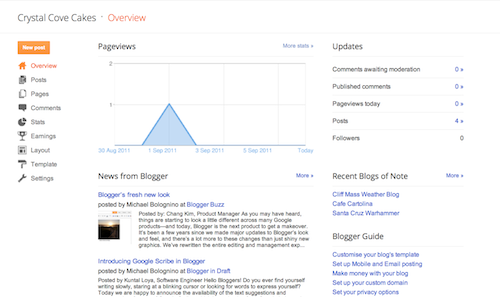
Overview On the Overview tab, you can see your blog’s activity, news and tips from the Blogger team, and recent Blogs of Note.
Back to top

Write your post

Once you've signed in to Blogger, you'll see your dashboard with your list of blogs. Here's what you need to do:
  1. Click the orange pencil icon to write a new post, and enter anything you want to share with the world.
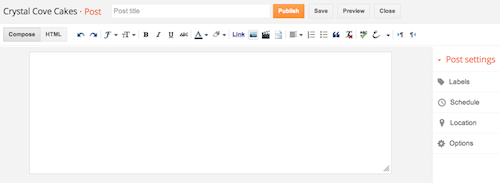
  2. Next, you'll see the Post Editor page. Start by giving your post a title (optional), then enter the post itself:
    New post
  3. When you're done, click the Preview button at the top to make sure it's ready to go, and then click the Publish button to publish your post.
Back to top

Add an image

You can add an image from your computer or the Web to your blog. Click the image icon in the Post Editor toolbar. A window appears prompting you to browse for an image file on your computer, or enter the URL of an image on the Web.
Once you've selected your image, you can then choose a layout to determine how your image will appear in your post:
  • The 'Left', 'Center', and 'Right' options allow you to customize the way your blog text will flow around your image.
  • The 'Image size' options will determine how large the image will appear within your post.
Click UPLOAD IMAGES to add your image, and then click DONE when the notification window appears telling you that 'Your image has been added.' Blogger will then return you to the post editor, where you'll see your image ready to be published to your blog.
You can also publish images to your blog using your mobile device, Google's free photo software Picasa, or a third-party service like flickr.
Back to top

Add a video

To add a video to your blog post, click the film strip icon in the Post Editor toolbar above where you compose your blog text. A window appears prompting you to 'Add a video to your blog post.'
Click Browse to select the video file from your computer that you'd like to upload. Note that Blogger accepts AVI, MPEG, QuickTime, Real and Windows Media files and that your video must be less than 100MB in size.
Before uploading your video, add a title in the 'Video Title' box and agree to the Terms and Conditions (you'll only have to do this the first time that you upload a video with Blogger). Then click UPLOAD VIDEO.
While your video uploads, you'll see a placeholder in the post editor showing where your video will appear. You'll also see a status message below the post editor letting you know that your upload is in progress. Depending on the size of your video, this usually takes about five minutes. When it is complete, your video will appear in the post editor.
Back to top

Customize

Your template is a fun way to customize your blog. When creating a new blog, you're first asked to choose a default template, this is the basic design of your blog. You can choose from many templates for your blog; simply pick the one that best fits your needs.
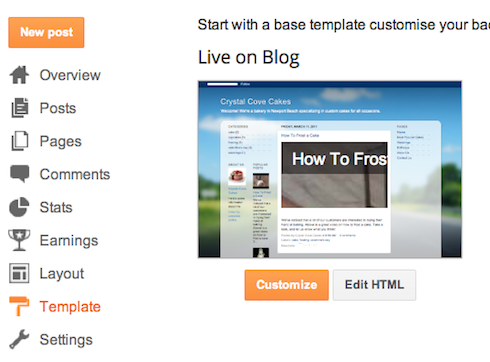
Template" Once on the Template tab, you can either click on the orange Customize button to get started with our easy-to-use WYSIWYG (“What you see is what you get”) template designer, or choose one of our many default templates. If you’d like to edit the HTML of your blog, just click the gray Edit HTML button.
In addition, you can customize your blog's design using our intuitive drag-and-drop interface. You can also add powerful gadgets such as slideshows, user polls, or even AdSense ads. If you want more precise control over your blog's layout, you can also use the Edit HTML feature. To edit your blog's layout, follow these steps:
  1. Click Layout from the drop-down menu on your dashboard below the blog you would like to customize.
  2. From there, click Edit to edit existing gadgets, or Add a Gadget to add new ones.
  3. To add a new gadget after you've clicked Add a Gadget, simply click the plus sign next to your desired gadget. You can choose from gadgets by category, or search for a specific gadget in the top right of the pop-up window.
  4. add_gadget
  5. Once you've added the necessary information to your selected gadget, click the orange Save arrangement button. Your layout changes will appear instantly.
Back to top

Privacy and permissions

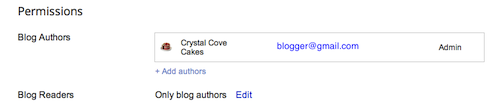
By default, your blog is completely public, and can be read by anyone on the internet. However, if you want to keep it private, you can do that, too. You can change these settings on the Settings | Basic tab.
Permissions and Privacy
  1. Under the 'Blog Readers' section, you'll probably see 'Anybody' selected as the default. When you change this to 'Only these readers,' you'll get an Add Readers button.
  2. Click the Add Readers button and then enter the email address of a person to whom you'd like to grant access to your blog. To add multiple people, separate their addresses with commas.
  3. For each address entered, the Google Account associated with that address will be given access to view your blog. If an address is not associated with an account, that person will receive an invitation email with a link allowing them do one of three things:
    • Sign in to an existing account.
    • Create a new account.
    • View your blog as a guest (no account required).
     
Steps To make a blog on wordpress:


WordPress.com is the easiest way to create a free website or blog. It's a powerful hosting platform that grows with you.
  1. Easy to use. WordPress.com lets you create beautiful and powerful websites or blogs.
  2. Your own domain name. ...
  3. Search engine and SEO friendly.
 Steps:

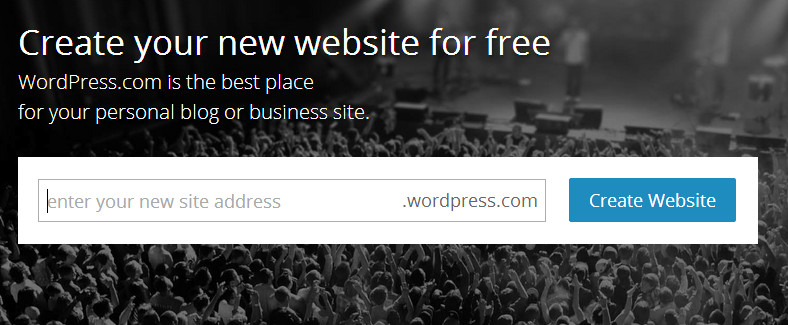
Signing Up for Your First WordPress.com site

To sign up for your first WordPress.com site, simply fill out the signup form.

Your site address can include lowercase letters (a-z) and numbers.

Adding New Site to an Existing Account

  1. Log in to your account (if you are not already logged in).
  2. Point your browser to http://wordpress.com/signup to register your new site.
Or..
    1. Log in by clicking/tapping on the Login button on the http://wordpress.com page.
      Log In Button
    2. Select the My Sites tab.
    3. Open the site selector by clicking on Switch Site at the top of the sidebar.
      Screen_Shot_2015-01-16_at_1_39_37_p
    4. Click or tap on Add New WordPress at the bottom of the sidebar.
      Additional Info
Deleted Site Names/URLs
A WordPress.com site owner can choose, at any time, to permanently delete their site. There are any number of reasons someone may want to do this, and we certainly respect their wishes and decisions.
Sites that have been deleted by the owner will remain deleted. We cannot, under any circumstances, allow someone to take over a site name that was previously owned and deleted by its original/previous owner. Please do not submit support requests asking us to do this.
Reserved Site Names/URLs
When a WordPress.com user signs up for an account we reserve the URL of their username. So if they signed up for the username of exampleuser we would reserve exampleuser.wordpress.com for them. There is nothing we can do to unreserve it and you will need to choose a different name.
Domain Names
Your WordPress.com site’s URL can be edited later, while the custom domain you have purchased is not.


                          Happy Blogging                 


:) :)

Steps:

1.Copy the coding given below:

_______________________________________________________________________